Selecting the Best Handwritten Paper Evaluation Software (Buyer’s Guide)
Updated: · Checklist included
Why This Category is Growing Fast
Schools and coaching institutes are moving toward digital evaluation because paper checking is slow, inconsistent at scale, and hard to audit. Handwritten evaluation software solves the problem by converting scanned scripts into structured data and applying consistent rubric rules across the entire batch.
How It Works (OCR → Rubric → Marking → Marked PDF → Excel Summary)
Step 1: Scan & upload
Students (or staff) scan answer sheets as PDFs. Clear scans are the foundation—bad scans reduce OCR quality and question mapping accuracy.
Step 2: OCR/HTR reads handwriting
Handwriting recognition (HTR) converts handwritten text into readable text, while preserving layout (question numbers, margins, answer regions).
Step 3: Question mapping
A strong tool identifies where each question’s answer appears—even if answers are out-of-order or span multiple pages.
Step 4: Rubric-based scoring (with partial marks)
The teacher (or coordinator) approves a marking rubric: key points, marks split, strictness, and partial marking rules. The system scores every student against the same rubric for consistent marking.
Step 5: Outputs
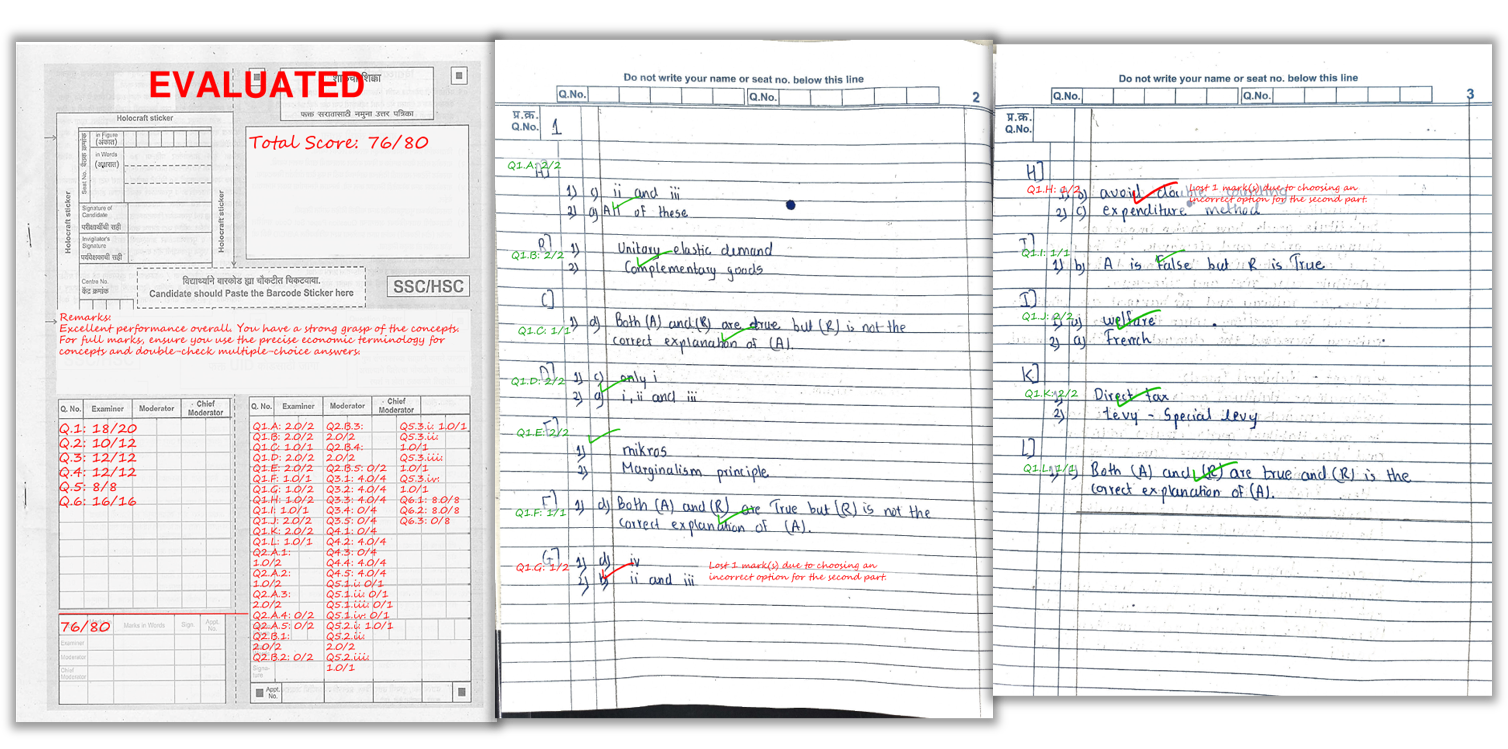
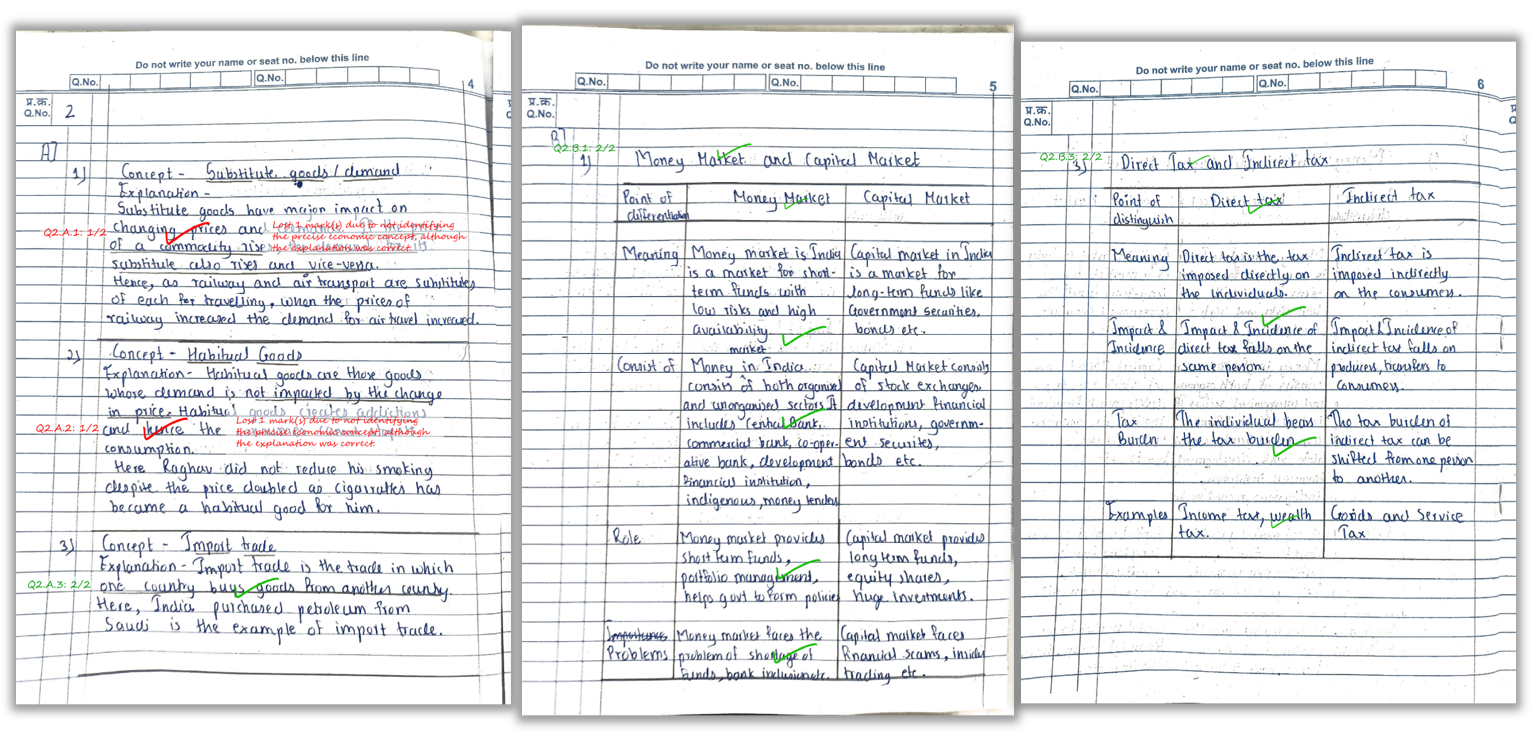
- Marked PDFs with question-wise marks + remarks on the answer sheet
- Excel summary with totals + overall feedback per student
- Optional analytics like weak questions/topics
Key Features to Look For (Shortlist Checklist)
1) OCR/HTR accuracy for real handwriting
- Works on cursive, fast writing, and different pen styles
- Handles page skew, uneven lighting, and light ink (within reason)
- Supports multi-page PDFs without skipping pages
2) Rubric fidelity + partial marking
- Teacher-approved rubric before evaluation
- Partial marks supported for partially correct answers
- Consistency across the entire batch (same strictness)
3) Marked PDF output (not just a score)
- Marks/remarks appear on the student’s sheet
- Per-question score visibility
- Clear summary page (strengths/weaknesses) improves usefulness
4) Exports & integration
- Excel/CSV summary export for records and sharing
- Bulk download ZIP for marked PDFs
- Optional LMS integration (nice-to-have, not required to start)
5) Security & retention policy
- Secure storage + access controls
- Clear retention/deletion rules (e.g., auto-delete after evaluation)
- Privacy-first approach (no selling of student data)
Pricing Models (what’s common)
Most evaluation platforms use one of these pricing approaches:
- Per page (simple for small batches)
- Credits (pay-as-you-go with flexible usage)
- Institute plan (bulk discounts + support)
Choose based on volume. For coaching institutes, credits or bulk plans usually work best.
Scanning Tips Checklist (to improve accuracy)
- Lighting: bright, even light; avoid shadows
- Flat pages: keep pages flat; avoid curvature
- Full page visible: do not crop edges
- Order: scan sequentially
- Legibility: encourage spacing and headings
See how marks and remarks appear directly on the student’s answer sheet.
FAQ
1) Can handwritten evaluation software give partial marks?
Yes—when the rubric defines key points and scoring rules, AI can award partial credit for partially correct answers.
2) Do we need a special scanner?
No. Many institutions start with phone scanning. A document scanner helps for very high volume.
3) Will it work across subjects?
Yes, as long as rubrics and expected answers are provided. Subjective and objective papers can both be supported.
4) What outputs will teachers receive?
Marked PDFs for each student and an Excel summary sheet with totals and feedback.
5) How should we compare vendors?
Ask for a sample marked PDF, check rubric controls, confirm retention policy, and run a pilot on your own answer sheets.
Related Reading
Want to see E-Valuate AI in action?
Explore Key Features, see Pricing, or Sign Up and start with free credits.